
In the Profile menu, you can update your personal information such as profile photo, address, password, and more.
Let’s go through each section available on the Profile page:
a) Change Profile Picture
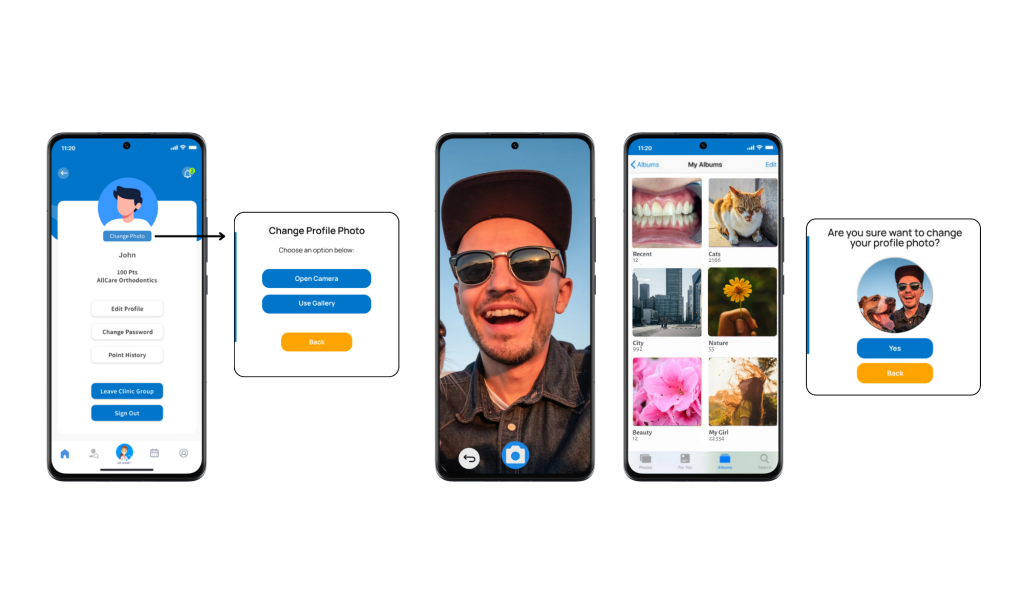
Tap Change Photo to update your profile image.
A pop-up will appear asking whether you want to take a new photo using your camera or select one from your device gallery.
Once successfully updated, you will be redirected back to the Profile page.
b) Edit Profile Information
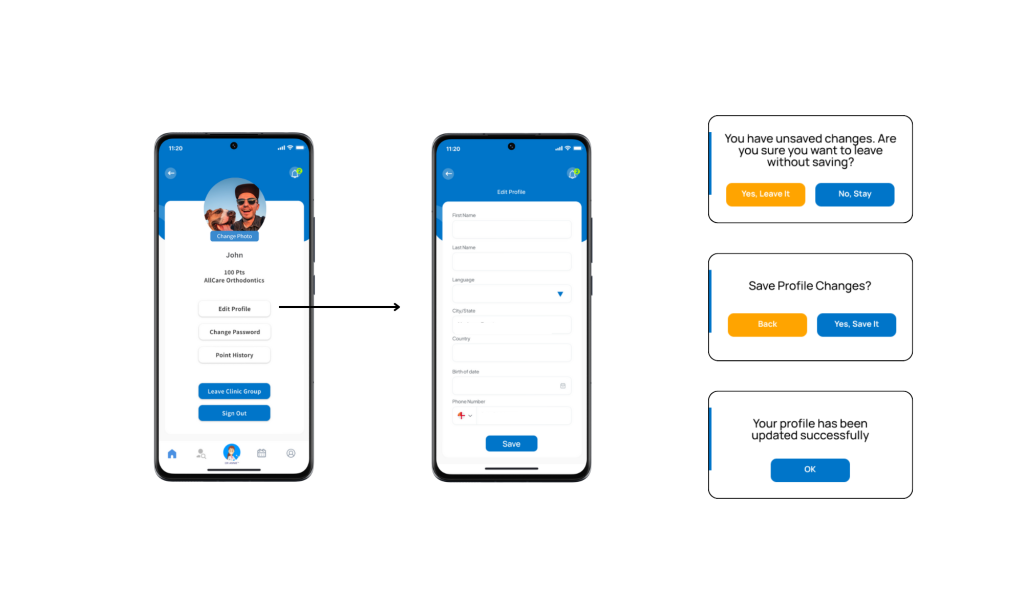
Tap Edit Profile to open the profile form.
Here, you can edit fields such as Name, City, Country, and Phone Number.
You can also change the application language from this section.
After making changes, tap Save to apply them.
c) Change Password
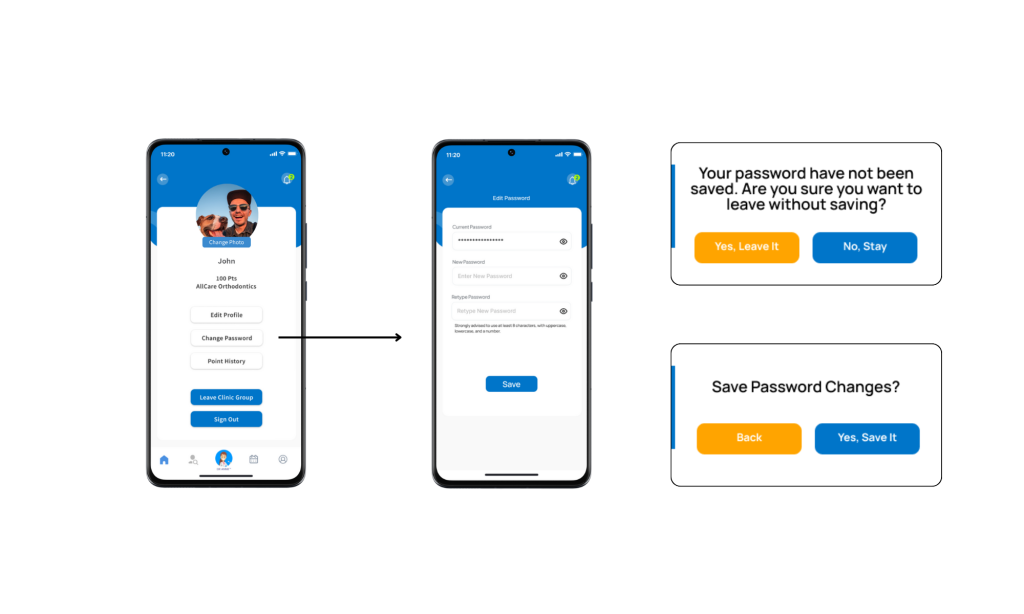
To update your password, go to the Change Password section.
You’ll be required to enter your current password, new password, and then retype the new password for confirmation.
It is strongly recommended to use at least 8 characters, including uppercase, lowercase, and numeric combinations for better security.
d) Point History
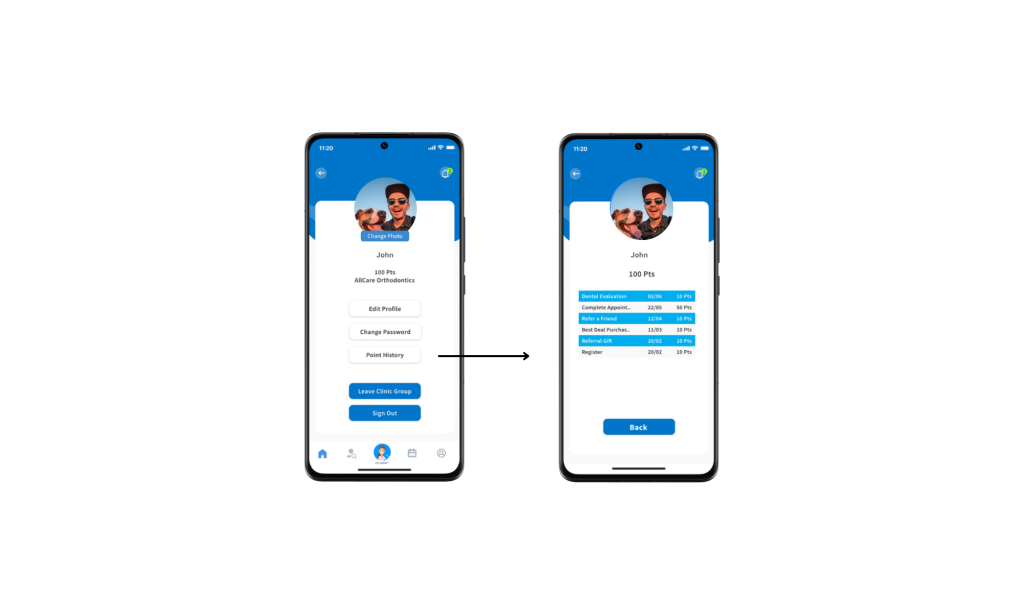
In this section, you can view your point history — when and how you earned your points will be displayed here.
A detailed points table is shown below:
(Insert image of point history table here)
e) Leave Clinic Group
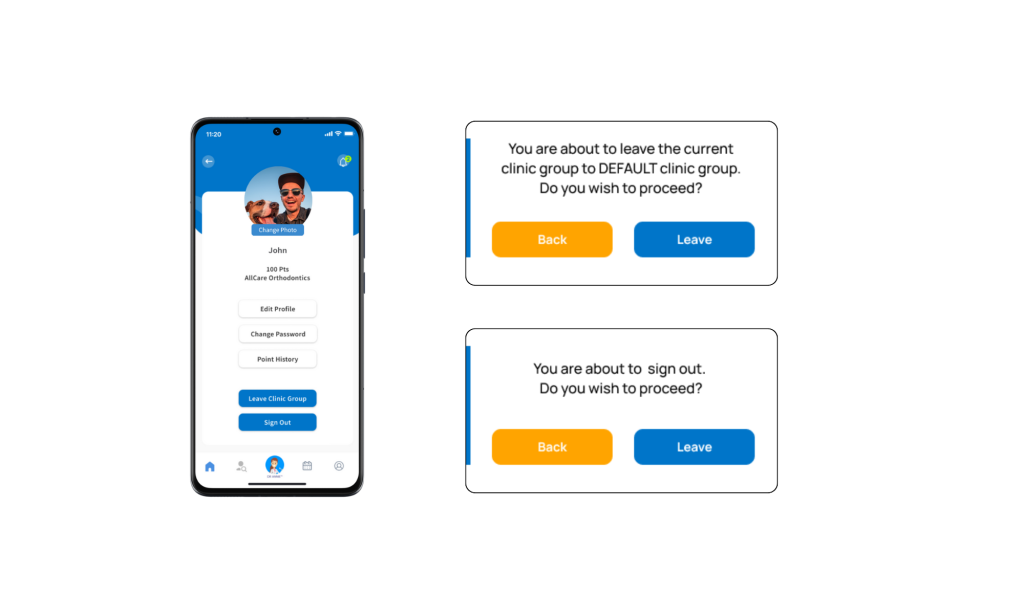
If you want to leave your current clinic group without logging out, tap Leave Clinic Group.
Once confirmed, you’ll be automatically switched to the General Clinic Group.
f) Sign Out
Tap Sign Out to log out from your iSmartOffice™ Patient account.
You can close the application or log back in anytime.
Tips:
- Use a recent profile photo so the clinic can recognize you easily.
- Update your password regularly to keep your account secure.
- Leaving a clinic group won’t log you out — you’ll automatically move to the General Clinic Group.


