
This section explains how to log in, register, or recover your account in iSmartOffice™ Patient.
a) Login #
If you already have an account, enter your email and password, then tap Login.
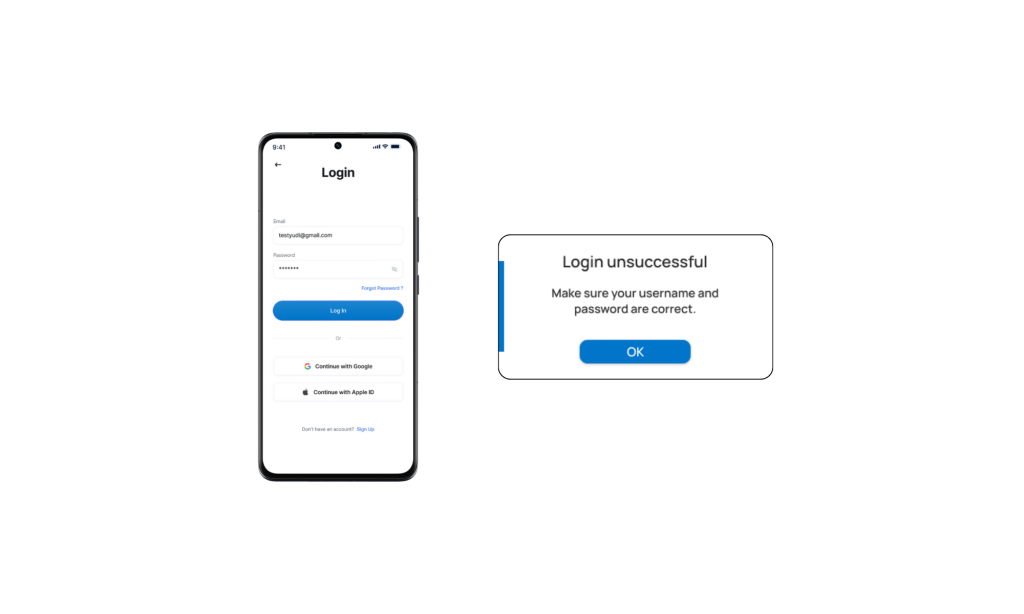
- A pop-up message will appear if the email or password is incorrect.
- Once the credentials are correct, the app will display the Enter Clinic Group page.
In this page, you can:
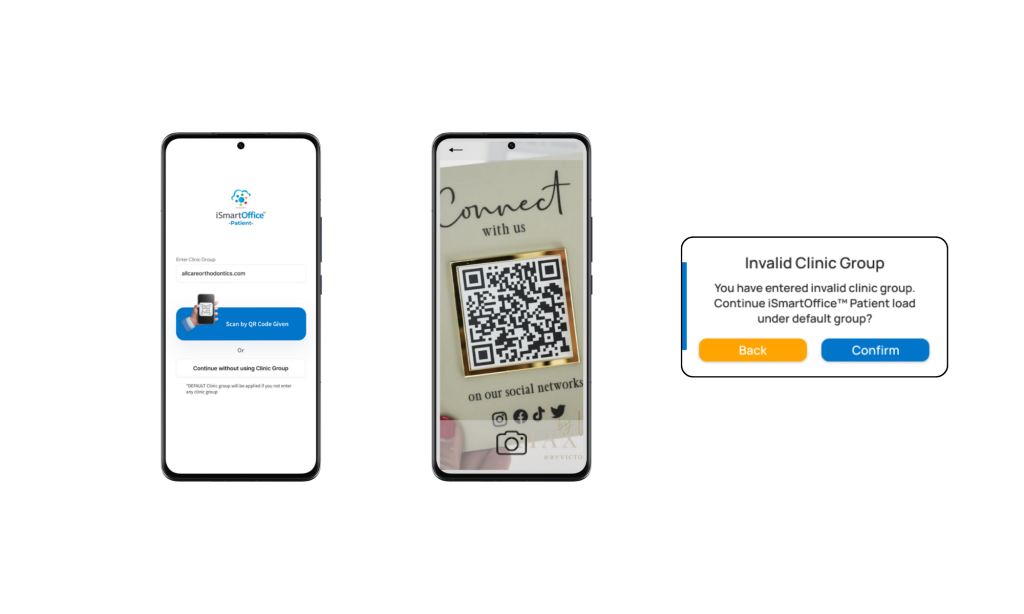
- Type the Clinic Group name, or
- Scan the QR code previously provided by your clinic.
If you don’t have any clinic group information, simply proceed without entering one.
Clinic Group is a system that connects you with clinics under a specific group. If you continue without selecting a clinic group, all available clinics will appear in your clinic search results — sorted by distance and/or relevance.
Once this step is complete, you will be directed to the main Dashboard of iSmartOffice™ Patient.
b) Register #
To create a new iSmartOffice™ Patient account:
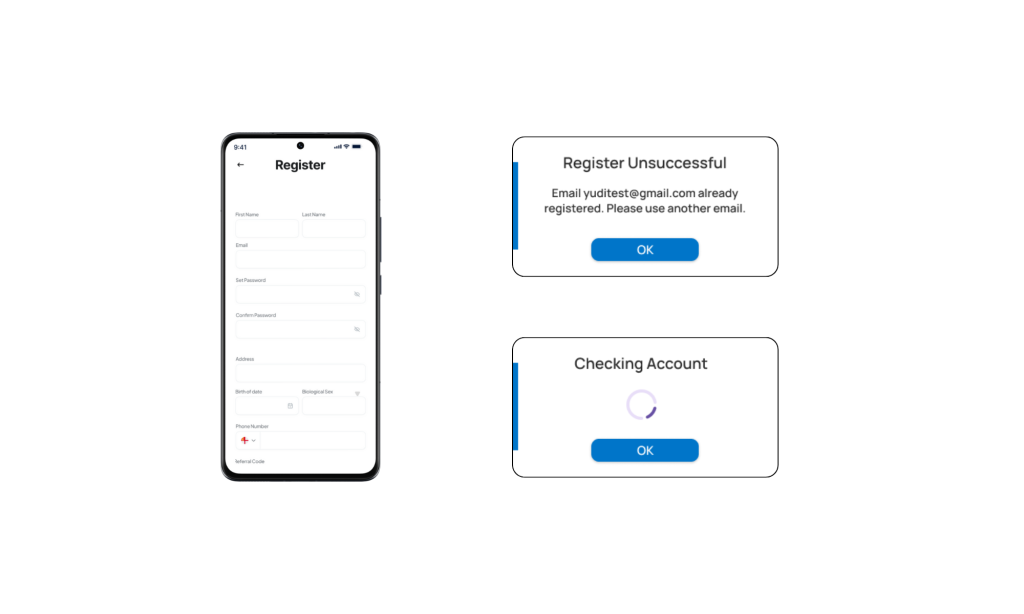
- Fill in all the required fields on the registration form.
- Red warning indicators will appear if any required field is missing or entered incorrectly.
- When all information is valid, iSmartOffice™ will send a verification code to your registered email.
- Open your email, retrieve the verification code, and enter it into the app.
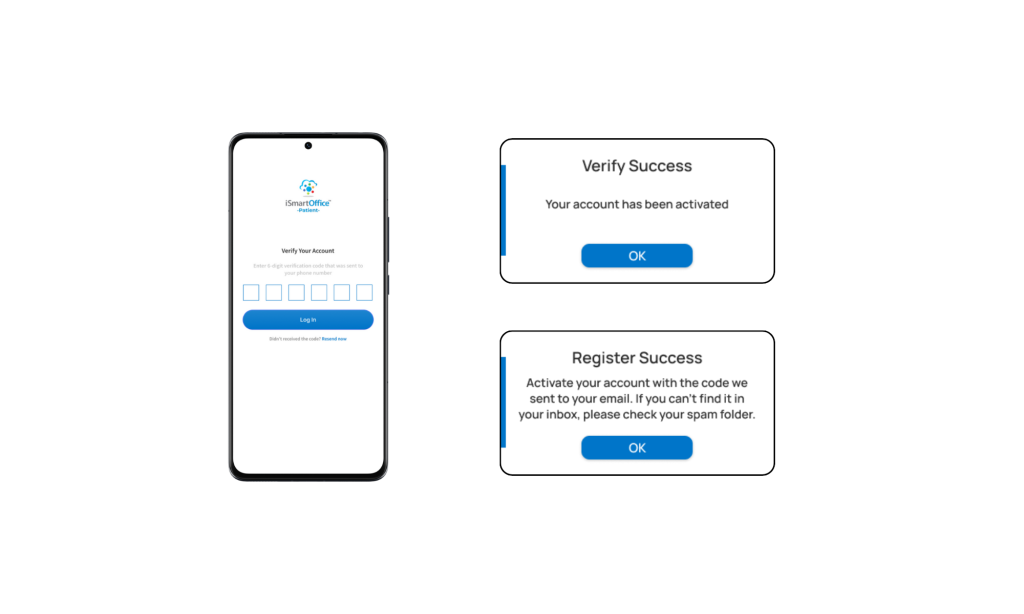
Congratulations — your iSmartOffice™ Patient account is now successfully registered!
c) Forgot Password #
If you’ve forgotten your password:
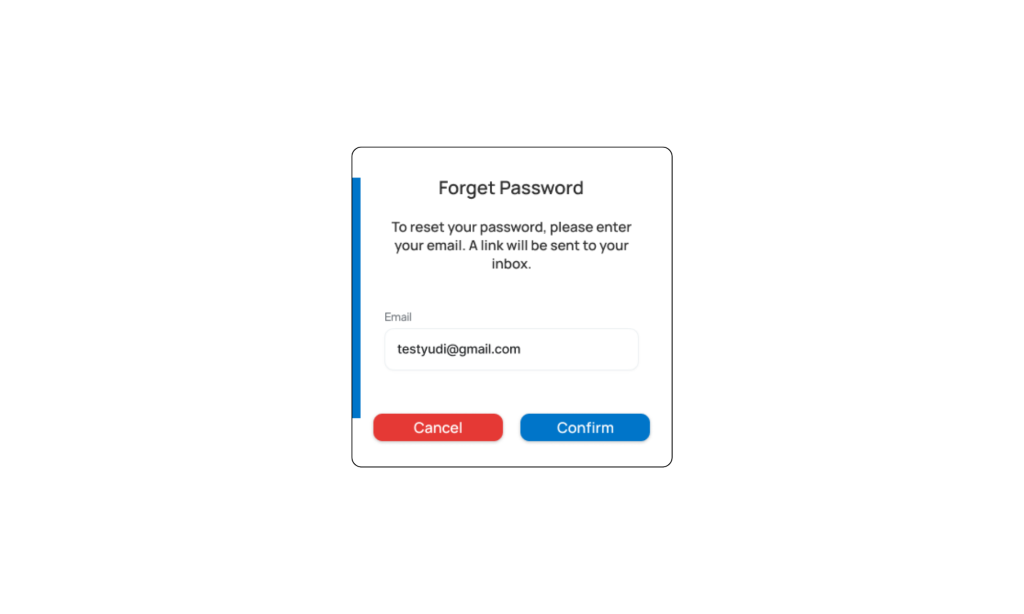
- Tap “Forgot Password?” below the login fields.
- A pop-up will appear asking you to enter your email address.
- The system will send a password reset link to your email.
- Open the link and follow the steps to create a new password.
d) SSO Login #
You can also log in or register instantly using Single Sign-On (SSO):
- Google Account
- Apple ID
Both options allow quick access — and if you don’t have an existing iSmartOffice™ account, the system will automatically create one for you during the first login.
Tips:
- Make sure you have a stable internet connection before using the app.
- If the login process feels slow, please wait a few seconds — the system is verifying your account.
- Use an active email address to easily reset your password or receive important updates.
- Use a strong password that includes uppercase, lowercase, and numbers.
- Double-check your email address — a verification link will be sent there.
- If you don’t receive the email, check your spam or junk folder.


